
Introduction
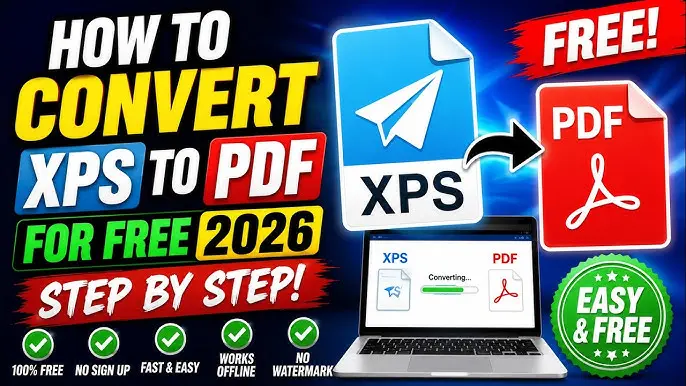
XPS to PDF conversion has become an essential task for students, professionals, businesses, and everyday computer users. Many people receive documents in XPS format but need them in PDF format for easier sharing, printing, archiving, and compatibility across different devices and operating systems. While XPS files were introduced by Microsoft as an alternative to PDF, they never gained the same level of popularity or universal support.
Today, PDF remains the most widely accepted document format in the world. Whether you are sending a resume, business proposal, invoice, report, or educational material, PDF is usually the preferred choice. This is why converting XPS files to PDF is often necessary.
The good news is that converting XPS to PDF is simple and can be done using online converters, desktop software, virtual printers, or built-in operating system tools. Even beginners with no technical experience can complete the process within minutes.
In this comprehensive guide, you will learn everything about XPS to PDF conversion, including what XPS files are, why conversion is important, step-by-step methods, benefits, risks, common mistakes, expert tips, and answers to frequently asked questions. By the end of this article, you will have a complete understanding of how to convert XPS documents into PDF files quickly and efficiently.
What is XPS to PDF?
XPS to PDF refers to the process of converting an XML Paper Specification (XPS) file into a Portable Document Format (PDF) file. XPS is a document format created by Microsoft to preserve document formatting and layout when sharing or printing files. It ensures that text, images, fonts, and graphics appear the same regardless of the device being used.
PDF, on the other hand, is a globally recognized document format developed by Adobe. It is supported by almost every operating system, browser, smartphone, tablet, and computer. Because of its widespread compatibility, PDF has become the preferred format for document sharing and storage.
When an XPS file is converted to PDF, the original layout, fonts, images, and formatting are typically preserved. This allows users to access the document on a wider range of devices without requiring special software that supports XPS files.
The conversion process can be completed through online tools, software applications, virtual PDF printers, or operating system features. The result is a PDF file that is easier to share, view, print, and archive.
Why is XPS to PDF Important?
The importance of XPS to PDF conversion lies primarily in compatibility and accessibility. While XPS files work well within certain Microsoft environments, many devices and applications do not provide native support for them. PDF files, however, can be opened almost anywhere without compatibility concerns.
Businesses frequently convert XPS documents into PDF files to ensure clients, customers, and partners can access important documents without technical difficulties. Educational institutions also prefer PDFs because students can open them using nearly any device or operating system.
Another major reason for conversion is long-term storage. PDF is considered a standard format for archiving documents because it is widely supported and less likely to become obsolete. Organizations often convert important records from XPS to PDF to ensure future accessibility.
Security is another factor. PDF files offer advanced options such as password protection, encryption, digital signatures, and permission controls. These features help protect sensitive information while making documents easier to distribute.
Ultimately, converting XPS to PDF improves document usability, accessibility, portability, and professional presentation.
Detailed Step-by-Step Guide
Method 1: Convert XPS to PDF Using an Online Converter
Online converters are among the easiest ways to convert XPS files.
Step 1: Choose a Reliable Online Converter
Select a trusted online conversion platform that supports XPS to PDF conversion.
Step 2: Upload the XPS File
Click the upload button and select your XPS file from your computer, tablet, or smartphone.
Step 3: Start the Conversion
Press the convert button to begin the process. The platform will automatically transform the XPS file into PDF format.
Step 4: Download the PDF
Once conversion is complete, download the PDF file to your device.
Step 5: Verify the Output
Open the PDF to ensure formatting, images, and text appear correctly.
Method 2: Convert XPS to PDF Using Microsoft Print to PDF
Windows users can use the built-in Print to PDF feature.
Step 1: Open the XPS File
Launch the XPS Viewer and open the desired document.
Step 2: Select Print
Choose the print option from the file menu.
Step 3: Select Microsoft Print to PDF
From the list of printers, choose Microsoft Print to PDF.
Step 4: Save the PDF
Click Print and select the destination folder where the PDF should be saved.
Step 5: Review the File
Open the newly created PDF and verify that everything appears correctly.
Method 3: Convert XPS to PDF Using Desktop Software
Professional software often provides advanced conversion options.
Step 1: Install the Software
Download and install a trusted PDF application.
Step 2: Import the XPS File
Open the software and import the XPS document.
Step 3: Choose PDF as Output Format
Select PDF from the available export or save options.
Step 4: Customize Settings
Adjust quality, compression, security, or page settings if needed.
Step 5: Complete Conversion
Start the conversion process and save the final PDF.
Method 4: Batch Convert Multiple XPS Files
When dealing with many files, batch conversion saves time.
Step 1: Select Multiple Files
Choose all XPS files you want to convert.
Step 2: Enable Batch Mode
Use software that supports multiple-file conversion.
Step 3: Configure Output Settings
Set file naming conventions and destination folders.
Step 4: Begin Conversion
Start the batch process.
Step 5: Review Results
Check several converted PDFs to confirm quality and accuracy.
Benefits of XPS to PDF
- Greater compatibility across devices and operating systems
- Easy document sharing
- Better support in web browsers
- Improved accessibility
- Professional document presentation
- Enhanced document security options
- Reliable long-term archiving
- Smaller file sizes in many cases
- Better support for digital signatures
- Easier printing and distribution
- Universal acceptance in business environments
- Convenient cloud storage integration
- Supports password protection
- Maintains original formatting
- Reduces software dependency
Disadvantages / Risks
- Some converters may slightly alter formatting
- Online tools may raise privacy concerns
- Large files can take longer to process
- Certain fonts may not convert perfectly
- Image quality may decrease with low-quality converters
- Some advanced document features may be lost
- Free tools often have file size limitations
- Internet connection is required for online conversion
- Poor-quality software may generate errors
- Batch conversion features may require premium software
Common Mistakes to Avoid
One of the most common mistakes is using unreliable conversion tools. Low-quality converters may produce corrupted files, missing images, or incorrect formatting. Always choose trusted conversion software or reputable online services.
Another mistake is failing to review the converted PDF. Users often assume the conversion was successful and share the document immediately. It is important to open the PDF and inspect every page for formatting issues.
Many people also forget to check file security. If the document contains sensitive information, ensure that uploaded files are handled securely and consider using password protection after conversion.
Ignoring file size optimization is another frequent error. Large PDFs can be difficult to email or upload. Use compression features when appropriate while maintaining acceptable quality.
Finally, avoid deleting the original XPS file until you confirm that the PDF version is complete and accurate.
FAQs
1. What is an XPS file?
An XPS file is Microsoft’s XML Paper Specification document format designed to preserve document layout, fonts, images, and formatting during viewing and printing.
2. Can I convert XPS to PDF for free?
Yes. Many online converters and built-in Windows tools allow users to convert XPS files to PDF without paying any fees.
3. Will the formatting change during conversion?
Most modern converters preserve formatting accurately. However, some complex documents may experience minor differences depending on the conversion tool used.
4. Is PDF better than XPS?
For most users, PDF is more practical because it is widely supported across devices, operating systems, applications, and web browsers.
5. Can I convert multiple XPS files at once?
Yes. Many desktop applications support batch conversion, allowing multiple XPS documents to be converted into PDF files simultaneously.
6. Are online XPS to PDF converters safe?
Trusted online converters are generally safe, but users should avoid uploading confidential documents to unknown websites. Always review privacy policies before uploading sensitive files.
7. Can smartphones convert XPS to PDF?
Yes. Many mobile apps and browser-based conversion tools allow XPS to PDF conversion directly from smartphones and tablets.
8. Does converting XPS to PDF reduce file quality?
In most cases, quality remains unchanged. However, some low-quality converters may compress images excessively, reducing overall document quality.
Expert Tips & Bonus Points
Always keep a backup copy of your original XPS file before conversion. This ensures you can retry the process if any issues occur.
Use desktop software instead of online tools when handling confidential documents. Local conversion provides greater privacy and security.
For professional documents, review page layout, images, fonts, and hyperlinks after conversion. Even minor formatting errors can affect presentation quality.
When converting large numbers of files, use batch processing tools to save time and improve productivity.
Consider adding password protection to PDF files containing sensitive information. This adds an extra layer of security before sharing.
Optimize PDF file size before emailing or uploading. Compressed PDFs are easier to store and distribute while maintaining acceptable quality.
Keep software updated to benefit from improved conversion accuracy, security enhancements, and compatibility features.
If document quality is critical, test several conversion tools and choose the one that delivers the most accurate results.
Conclusion
XPS to PDF conversion is an important process that helps users transform Microsoft XPS documents into a universally accepted and widely supported format. While XPS files can preserve document layouts effectively, their limited compatibility often creates challenges when sharing, viewing, printing, or archiving documents. PDF eliminates these issues by offering broad support across virtually all devices and operating systems.
Whether you choose an online converter, desktop software, Microsoft Print to PDF, or batch conversion tools, the process is straightforward and accessible even for beginners. The key is selecting reliable tools, verifying the output quality, and maintaining document security throughout the conversion process.
The benefits of converting XPS to PDF include improved accessibility, better compatibility, enhanced security options, easier sharing, and long-term document preservation. Although some risks exist, such as privacy concerns with online tools or occasional formatting issues, these challenges can be minimized by following best practices and using trusted software.
By understanding the conversion methods, avoiding common mistakes, and applying expert tips, you can efficiently convert XPS files into professional-quality PDF documents. As PDF continues to dominate the digital document landscape, mastering XPS to PDF conversion remains a valuable skill for students, professionals, businesses, and everyday users alike.